
Resource Area
Centralised project documentation and downloadable technical assets
Resource Sections
GAIA-FIELD User Interface Guide
GAIA-FIELD User interface Guide.
This document introduces users to the GAIA-FIELD Home and Measure interface pages
Document Release
Version | Date | Description | Responsible |
1 | Feb-2026 | Initial Version | A Adelekan |
1.1 | Apr-2026 | General Update | J Wingate |
Connect to the GAIA-FLD unit
Connect to the GAIA-FLD interface using either Wi-Fi(http://192.168.9.1) or USB (http://192.168.8.1).
Main Menu
The main menu is visible on the left of the GAIA UI screen. [Bottom in mobile view]

Home Page
The ‘Home’ page consists of the following:
· New Project: To create new project
· Close Project: To close the current active project on the GAIA-Field
· Storage Status bar: State of the onboard storage
· Existing Project List: Existing project files saved on the device
Click on an existing project file to see the following options or use the buttons when visible;
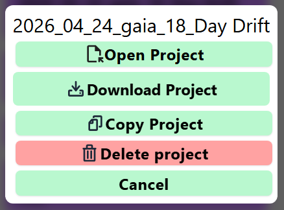
· Open Project: Loads the current project file
· Download Project: Downloads the raw SDB file to your device
· Copy Project: Copies the raw SDB file to a connected USB drive
· Delete Project: Deletes the complete project (Cannot be undone!)
Note the raw SDB file is a proprietary format for internal SMG use only at this time.
Measure
‘Measure’ page is the main interface to taking gravity measurements and reviewing measurement data.

The ‘Measure’ page has the following sections:
· Station & Repeat Field Entry: Enter you station name and number of automated repeats.
· Read / Stop Read Button: To Start and Stop measurements
· QA Indicators: Visual Status of the Gravimeter systems (Currently only Temperature)
· Tilt Screen: Visualises the current device and sensor tilt / level status.
· Level Button: Triggers the levelling command outside a reading
Below this are the Station Result Screens
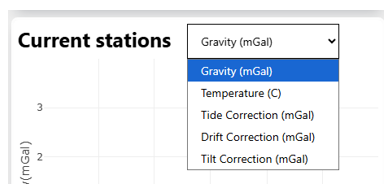
· Current Stations: Graphical view on current stations. Use the dropdown menu to switch between different values
· Raw Measurement: Graphical view on the active or selected measurement showing live acceleration data.

· Results Table: Summary data for reach measurement in table format
· Export Buttons; For user processable data files in CSV format
· Deleted Stations: To view/restore any deleted Station data
· System Temperature: Summary table for system Temperatures

If you click on a measurement value in the Current Stations or Results Table a detailed summary window will appear.
The Detailed Summary window shows
- Station data
- Repeat data (repeats are Stations with the same name)
- Corrections
- Temperatures
- Notes
- Universally Unique ID
Click the ‘Edit’ icon to change the Station Name or Notes.
Note: Deleting a Station can be reversed via the show deleted stations toggle
