
Resource Area
Centralised project documentation and downloadable technical assets
Resource Sections
GAIA-FIELD Creating and loading projects
GAIA-FIELD Creating and loading projects
This document describes the process to create new project or load existing project when using GAIA-FLD unit.
Document Release
Version | Date | Description | Responsible |
1 | Feb-2026 | Initial Version | A Adelekan |
1.1 | Apr-2026 | General Update | J Wingate |
Connect to the GAIA-FLD software interface using either Wi-Fi (http://192.168.9.1) or USB(http://192.168.8.1 ).
Creating New project using Simple Project Type
· Simple Project, allows user to enter the Station ID and number of repeats for each measurement.
After accessing the Home page, click on the ‘NEW PROJECT’ tab.

New Project Wizard
Enter the ‘Project Name’ and select the ‘Project Type’ (Simple) form drop down. Then click ‘Next’
Note a Simple Project, allows user to enter the Station ID and number of repeats for each measurement.
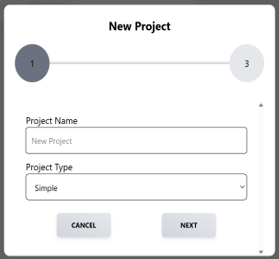
Project Settings Page 2
· Enter the data reading time per station: Note that the time is in seconds.
· Project Longitude: Relative longitude within the study area (eg 52.27 or -32.07)
· Project Latitude: Relative latitude within the study area (eg 0.18 or -79.43
· Project Elevation: Relative elevation to sea level within the study area in meters (eg 10 or -50
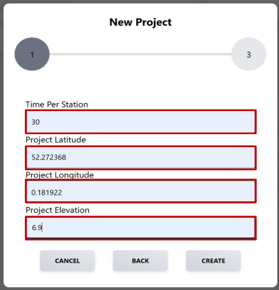
Finally click on ‘CREATE’. The project will load and take you to the Measure page.